| |
|
Tutorials
Step 5: Scanning
Once you've completed cleaning up your drawing, set up your scanner
and paint program. Now, if you properly cleaned up your drawing, you
shouldn't have any problems painting it. I scan in at 150 dpi. With
the lastest version of Corel Photo Paint I am able to adjust the brightness
and contrast in the scanning stage. I do a couple of previews to make
sure the image is clear. If I really want to have a big image to work
with then I scan it in at 300 dpi ( dots per inch ). However, this size
takes up allot of memory and it might slow down your system when working
so big. If your computer can handle it, then by all means work as big
as you want to. Also try to keep in mind where your final image will
end up at. If you are only going to post it on the net, then you really
don’t need to work that big. However, if you are planning on making
prints or putting a book together, then you will need these big files.
For the comix I was scanning at 300 dpi at first. Then I found out that
it was really slowing down my program because each page of my comic
book was at that size and I usually work with all the pages at one time.
Ultimately I would only end up exporting at 96 dpi, so it didn’t
make sense to scan at such high resolution. I now scan my comic book
pages at 100 dpi, just slightly higher of what I export it out as.
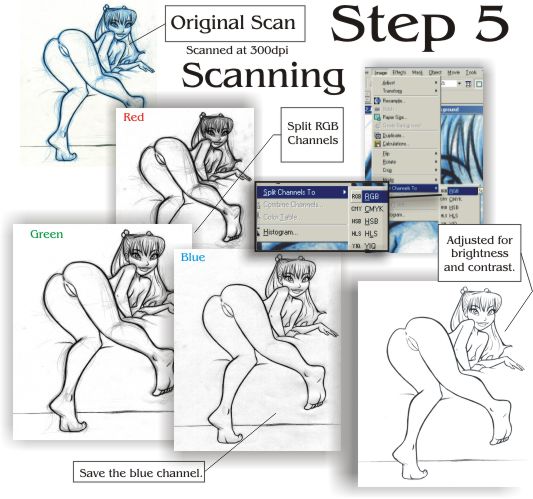
Spiliting RGB channels:
This next step I just discovered not too long ago. It has worked wonders
for me. For starters, it helps me iliminate all the blue sketch, leaving
only the black line. How do you do this you might ask? Well, once you
have your image scaned and into your paint program, go the the “Image”
pull down menu. In there, select “Split Channels to” then
choose “RGB”. This option will split the drawing into three
different images filtering out either red, green or blue. I’m interested
more in the blue filtered image that will knock out all the blue sketch.
This is the image that you will save. All the others you can delete.
Adjusting Brightness/Contrast:
I adjust brightness and contrast on my drawing. I do this to get rid
of all the grey, but make sure you keep a good quality of your finished
line art. Bring the brightness just high enough to bring out the white.
Also, use the contrast to darken the lines a bit.
Next -> Step 6: Painting part
1
|